TutuEdit is an online image editor you can use straight from your browser — a web-based "online PS". Layers, masks, blend modes, selections, the pen tool, adjustment layers, filters and PSD read/write are all supported, and the keyboard shortcuts match Photoshop.
Free and nothing to install; the AI needs no sign-up either and has free credits every day, on phone and desktop alike. Most features run inside your own browser; when you're signed out the image isn't uploaded, and once you sign in your work is saved automatically to your own cloud projects. In the AI panel, the actions that send an image carry a cloud icon, and the assistant takes a thumbnail when it looks at the canvas. Everything a day-to-day editing job calls for — cutouts, color work, retouching, layout and export — you can finish in one place. To change one part of a picture, roughly circle it with the marquee or lasso and say one sentence — the AI changes only that part, as a new layer you can keep adjusting (this step sends the circled area to the cloud). You can also circle several spots, say a sentence for each, and generate them together.
- Is TutuEdit free?
- Yes. Every local feature — editing, background removal, compression, format conversion, PSD editing, layers and masks, filters — is completely free, unlimited and needs no account. The AI features that need a large model need no sign-up either and come with free credits every day. Only saving a project to the cloud requires signing in. Photo printing is a paid service provided by TutuPrints.
- Do I need to create an account?
- No. Open the page and start — that includes the AI features. Signing in is only for saving a project to the cloud and picking it up on another device.
- Are my images uploaded to a server?
- Most of them don’t. Compression, cutout, resizing, format conversion, PSD editing, layers and filters all run inside your browser. The ones that need a large model — Old Photo Restore, AI Colorize, Replace background, ID Photo, Upscale, Beautify, Decorate, De-age, Split into editable layers and Edit text in image: 10 in all — do send the layer you picked to the cloud; in the AI panel those action cards carry a cloud icon next to the title, so you see it before you click. When you chat with the AI assistant and it needs to look at the canvas, it sends the model a small thumbnail.
- Can it open PSD files? Is it compatible with Photoshop?
- Yes. It opens .psd and .psb with layers, layer groups, masks, blend modes and text layers all preserved, and smart objects come through flagged. When you're done, export back to PSD and pick up in Photoshop or Photopea — it works in both directions.
- Does it work on a phone?
- Yes. Open it in a mobile browser and you get the same features as on desktop, including layers, masks and batch processing. The toolbars fold into a touch-friendly layout automatically.
- How is it different from Photopea?
- Classic pro editing is on par on both sides — layers, masks, channels, adjustment layers, smart objects, layer styles, the pen tool with work paths and PSD read/write are all here, with the same shortcuts. The difference lies in three other things: TutuEdit can change one named layer of your canvas from a single sentence (say "brighten L2" and only that layer changes), and what it produces is a layered draft you can edit layer by layer; once you sign in your projects are saved to the cloud automatically, and then after you close the page the AI can carry on finishing that document in the cloud, and when you return you can step through the changes or undo them all with one click; and there are no ads.
- Which models does TutuEdit's AI use? Can it match Adobe Firefly or Canva?
- TutuEdit builds no models of its own: TutuAgent connects it to top-tier models and keeps swapping them as they improve, never locked to any single vendor. Worth saying plainly: reaching first-tier models is fast becoming table stakes — Adobe Firefly now offers a third-party model picker alongside its own, and Photopea has credit-metered generation too — so the model half is nobody's moat. Our difference there is only the cost of entry: no sign-up, free credits every day, and nothing for you to do when a new model lands. The real difference comes after generation: elsewhere you get a flattened image and fixing one word means redrawing the whole thing, whereas TutuEdit hands you a layered document — click that layer, change the text, and nothing else moves by a pixel, then export a PSD for Photoshop to pick up.
- Can it handle a lot of images at once? Is there a limit?
- There are two cases. Resizing, converting and compressing run locally in your browser with no file-count limit, no uploads and no account. Batch creation and batch editing can be handed to the AI (which uses cloud models); if you'd rather not upload, while signed out use the menu File > Automate > Batch... to apply a recorded action to each open document on your own device (once you sign in, your work is saved automatically to your own cloud projects). Batch export runs in your browser, one format per run, and can be packed into a ZIP. Doing it by hand in the interface has no file-count limit either, with a progress bar you can stop at any time. When you hand the job to the AI and it doesn't finish in one round, it tells you exactly which ones are left and how to carry on — it never starts over, and it never reports "4 of 9 exported" as "all done".
- Compared with Pixlr, Canva, Firefly or Picsart, which should I choose?
- It depends what you need. If you just want one generated image and won't edit it further, any generative tool will do. If you want to generate and then retouch it like you would in Photoshop, TutuEdit is the one that does both: it taps the current top-tier models while giving you full layers, masks, channels, the pen tool and PSD read/write — and the AI needs no sign-up, with free credits every day. Two things nobody else offers: once you sign in and the document is saved to the cloud, the AI keeps working there after you close the page; and local batches with no file-count limit that never upload. A third: naming a layer on your canvas and changing just that one by sentence — elsewhere the AI usually works on a selection or the whole image. What we don't have is real-time collaboration — two people can't edit the same document at once.
- Does the AI need a sign-up? How much can I use for free each day?
- No sign-up — open it and go. The cloud AI has free credits every day, metered by TutuAgent, and the assistant tells you plainly when they run out; light use costs nothing. Guest conversations are cleared after 24 hours and kept once you sign in. If the credits run out, local AI like cutout, upscaling and expanding, plus every editing feature, keeps working.
- How does it compare with Photoshop?
- Better: no install, no hardware demands, no subscription, works on phones, AI without sign-up and with free daily credits, PSD both ways, the same shortcuts, and one sentence changes the layer you name. Worse: no CMYK document mode or 16/32-bit color, no multiple artboards and no 3D — for print-grade color management, use Photoshop.
- Can I use what I make commercially? What about font licences?
- Exports carry no watermark and we claim no rights over your work. Fonts are where problems happen: new text uses Noto Sans SC (SIL OFL, free for commercial use); the font list marks what is commercial-safe, and system fonts such as Microsoft YaHei, SimSun or Arial are marked as needing a licence check. If your export uses one of those, you’re told and can switch to a commercial-safe substitute in one click (swaps like Arial → Arimo keep every character’s width, so the layout doesn’t move), and it can be undone. We don’t distribute font files and exported images contain none; fonts you upload yourself are your own responsibility.
- Can I turn an image into a layered PSD?
- Yes. Drop it on the Image to Layered PSD page, or ask the AI in the editor to split it into editable layers: text is rebuilt as editable text layers, shapes and the background get their own layers, the original stays as a hidden backup, and you can export a PSD. It’s a rebuild from the image, not a pixel-exact separation; shape layers become pixels in the PSD. This step sends the image to the cloud — no sign-in, with a free daily allowance.
- Can I change just one part of an image?
- Yes. Roughly circle that part with the marquee or lasso and “✨ Change this to…” appears on the canvas; write one sentence (say “put on a pair of glasses” or “remove the passer-by”). The AI takes your circle as the starting point and decides how far the change needs to reach — circle one eye and ask for glasses, and it will usually fit a pair over both eyes; if you want it strictly inside the selection, say “only inside the selection”. The result is a new layer with a mask and the original stays untouched: you can switch to another candidate, hold to compare with the original, and Ctrl+Z undoes it in one step. This step sends the circled area to the cloud — no sign-in, with a free daily allowance.
- Can I change several parts of an image at once?
- Yes. Box each spot with the Note tool or the marquee and write one sentence for each (say “make it a green apple”, “make the mug dark blue”, “put a croissant here”), then click “✨ Generate N areas”. They're done in a single generation as one new layer, and the original stays untouched. How much of each spot shows follows what the AI actually drew there, so a box drawn too small doesn't cut things off; on the result card you can hide or show any single spot, or redo just one. This step sends the block that contains those spots to the cloud — no sign-in, with a free daily allowance.

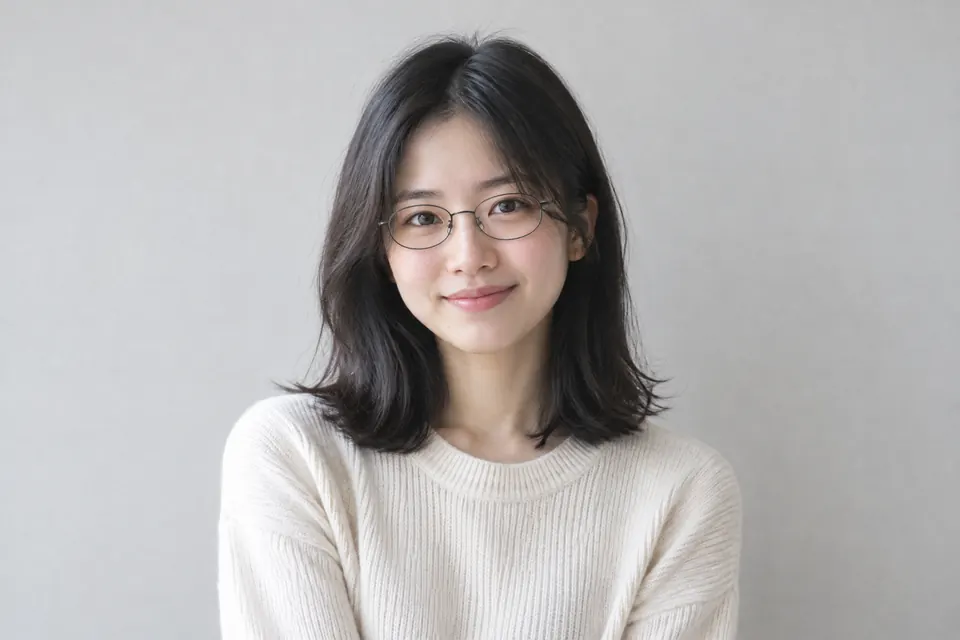
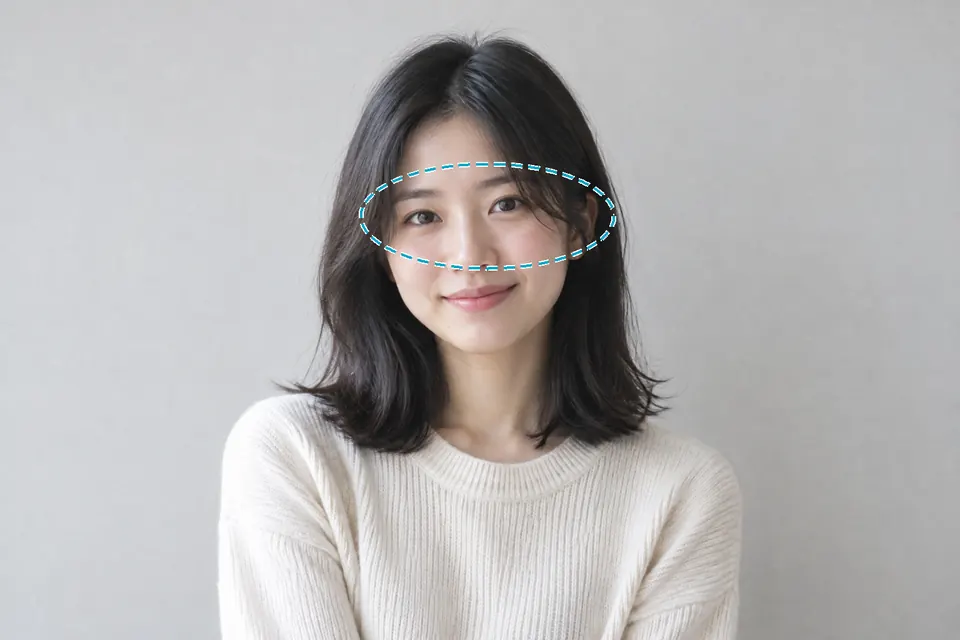 Original After AI
  More from tutuprints