
AI old photo restoration
Remove scratches · fix fading · sharpen blur · HD cloud-AI restoration, ready to use
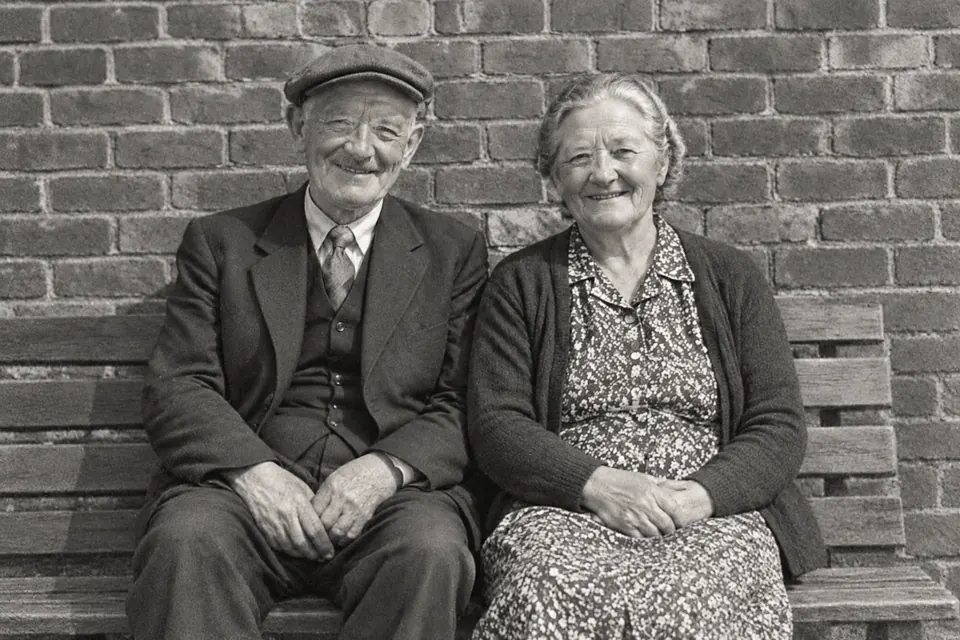
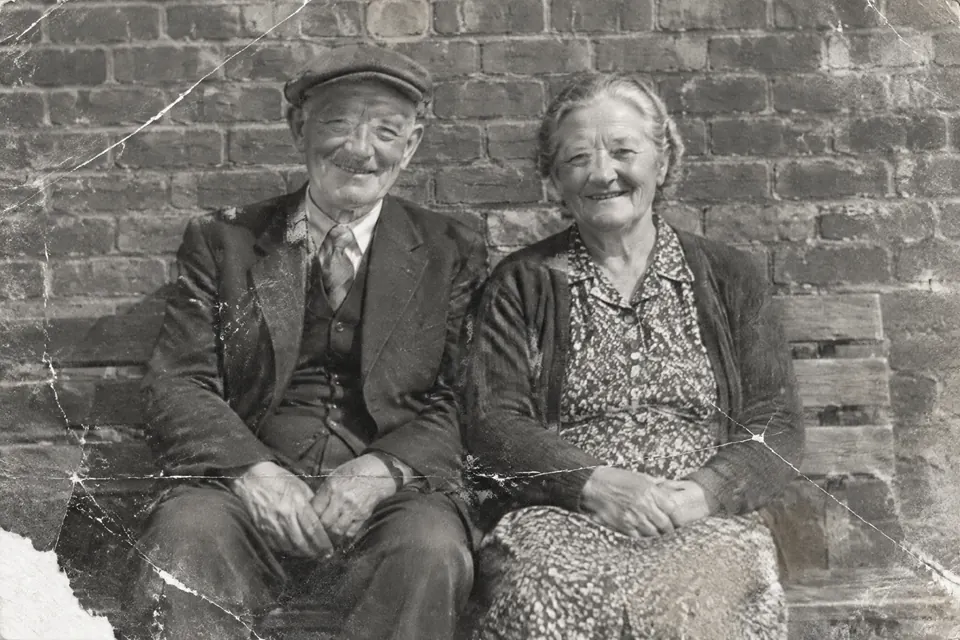 Original Result
 Old family photos yellowed, scratched, or with blurry faces? TutuEdit's built-in AI restoration removes scratches, revives faded color and sharpens faces from a single photo — no manual Photoshop work.
High-quality restoration is done by cloud AI (the photo travels over HTTPS; see the privacy policy for where it goes). If it fails, you're told plainly — it won't quietly switch to some other processing. To try something locally first, the AI panel has “Brighten & color”, and the image never leaves the browser. After restoring you can keep cropping, colorizing and adding text right in the editor.
Key features
One-click smart restore
AI detects scratches, noise and fading and restores the whole photo, sparing you spot-by-spot fixes.
Sharper faces
Enhances blurry faces so people's features in old photos are clearer.
Cloud restoration, honest about failures
HD restoration is done by cloud AI; if it fails you're told plainly, and it won't quietly switch to local processing. To brighten locally first, the AI panel has “Brighten & color”.
Keep editing after
The result opens in the editor to colorize, crop, add text and export.
How to use
- 1 Open the old photoDrag the old photo onto the area above (or click to choose); it opens in the editor — on a computer the AI panel opens automatically, on a phone tap “Layer” in the bottom bar to open the panel drawer, then switch to the “AI” tab (the “AI” button in the middle of the bottom bar opens the assistant chat).
- 2 Run AI restoreIn the AI panel click “Old Photo Restore” and wait for cloud AI to process it.
- 3 Compare / fine-tuneReview the result and, if needed, fine-tune areas with the brush and color tools.
- 4 Export or saveExport PNG / JPG. A local draft is saved automatically as you edit; once you sign in, your work is also saved automatically to your own cloud projects.
FAQ
- Is AI old-photo restoration free?
- Free, and usable right away. The editor itself is free and unlimited; old-photo restoration runs on cloud AI with no sign-up and free credits every day, and there's no key to set up. The result replaces the layer you selected outright, and Ctrl+Z undoes it. If you'd rather your image never left the machine, brighten, denoise, sharpen and object removal all run in your own browser and are ready now.
- Does restoration upload my photo?
- HD restoration needs to send the photo over HTTPS to cloud AI; see the privacy policy for where it goes. If you'd rather not upload, “Brighten & color” in the AI panel runs locally and the image never leaves the browser.
- What kind of old photos work well?
- Yellowed, faded, scratched, and mildly-to-moderately blurry photos work best; severely damaged photos may need several tries or manual help.
- Can I colorize after restoring?
- Yes. The result stays in the editor, so you can then use “AI Colorize” to turn a black-and-white photo into color.
Try AI old photo restoration now
Cloud AI restoration · no sign-up, free credits every day · photos travel over HTTPS and where they go is in the privacy policy